Showing posts with label SharePoint. Show all posts
Sync SharePoint Managed metadata field with database table using Powershell
Or: How to add terms to a termset from Powershell :)
In this case we are collecting project numbers from a SQL Server table, the Job table in a Navision instance to be exact.When we have got the records all fine and happy we connect to SharePoint and asks it gently if it could please let us in to the Managed Metadata Service.
Once inside we rush to the term group Projects, demands it to show us it's term set Project numbers and then convinces it to accept all new numbers or else:
The term set Project number and Term group Projects already have lived a while in the Term Store. If your Term Store are missing out and wants a visit you could introduce them the usual way: Intro to Term store GUI
After getting on equal terms with Projects we settle down, release the site back to SharePoint with a polite Dispose() and retreat happily into the sun again.
As we both feel this was important we arrange a regular appointment using Scheduled Tasks and promise to call.
Hope it helps,
Henri
SharePoint Workflows: Access Denied when starting manually


Permissions needed to start Workflow manually
I had a list workflow in SharePoint Online that wouldn't start for users with Edit and/or Contribute permissions on the list.
This was a workflow the user would start manually, but before it started the user would get to a page saying Access denied.
I then tried to give the users permissions on Workflow History and Workflow Tasks list, but still no luck. The page it was trying to open was layouts/15/workflow.aspx
The solution:
Give the users Contribute permissions to the site itself.
This may implicate that you will have to break permissions on other Lists you don't want these users to have that level of access to, but I have not found another way to bypass this issue.
Many times this issue will not surface because users are Members of your site and then by default they will inherit this permission. But if you are tightening up security, using AD groups etc for your permissions then you can suddenly find yourself in the same situation. Then just google here ;)
SharePoint 2013 Search - Content Type Refiner
Content Types
,
Refiners
,
Search
,
Search Center
,
Search Refiners
,
SharePoint
,
SharePoint 2013
14 comments
In SharePoint 2013 it is now easy to enable Search refinements on your content types.

The image shows search results for the word sharepoint, and lists Content Types SharePoint found in the results.
Note that this is the actual content types you have configured on your site, not the document types like Word, PDF etc.

This image shows the same result but refined with the Content Type FAQ.
FAQ is a content type I have defined in our Site Collection, it could be anything really.
We have content types like Offer, Contract, Design document etc.
As you can see the FAQ results include PDFs, Web pages and Word documents.
So how do we set this up so we can make use of the nice content types we have already defined for our sites?
First we need a Search Center.
(Hop on over to http://technet.microsoft.com/en-us/library/hh582314.aspx or maybe http://www.c-sharpcorner.com/UploadFile/Roji.Joy/how-to-configure-search-centre-in-sharepoint-2013/ for some guidance if you haven't one already)
To be able to refine our search using our content types, we need to add a refiner to our search page.
In SharePoint 2010 we would also need to add a managed property,
but now in SharePoint 2013 this is available out of the box.
(See this article for a walkthrough on how to set this up in SharePoint 2010:
http://www.glynblogs.com/2011/01/create-a-content-type-search-refinement-panel-in-sharepoint-2010.html)
Go to your Search Center Url and Edit the page:
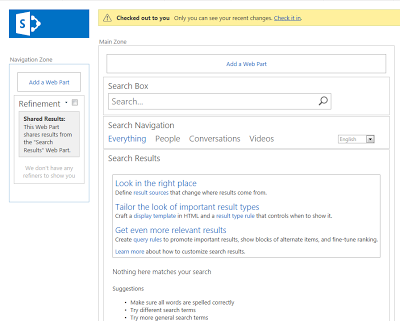
Select Refinement - Edit web part
(Take the mouse up to Refinement heading, and you should get a little triangle to the right, click that and Edit web part should be a choice in the menu)
You will get a column to the right with settings for the webpart:


I have moved it up to the top of my refiners, so it will be shown to the top in the refinement panel.
Select ok twice and Save and then Check in your page.
You can now search and refine on your Content Types in SharePoint 2013.
Your content types just got a whole lot more useful :)

The image shows search results for the word sharepoint, and lists Content Types SharePoint found in the results.
Note that this is the actual content types you have configured on your site, not the document types like Word, PDF etc.

This image shows the same result but refined with the Content Type FAQ.
FAQ is a content type I have defined in our Site Collection, it could be anything really.
We have content types like Offer, Contract, Design document etc.
As you can see the FAQ results include PDFs, Web pages and Word documents.
So how do we set this up so we can make use of the nice content types we have already defined for our sites?
First we need a Search Center.
(Hop on over to http://technet.microsoft.com/en-us/library/hh582314.aspx or maybe http://www.c-sharpcorner.com/UploadFile/Roji.Joy/how-to-configure-search-centre-in-sharepoint-2013/ for some guidance if you haven't one already)
To be able to refine our search using our content types, we need to add a refiner to our search page.
In SharePoint 2010 we would also need to add a managed property,
but now in SharePoint 2013 this is available out of the box.
(See this article for a walkthrough on how to set this up in SharePoint 2010:
http://www.glynblogs.com/2011/01/create-a-content-type-search-refinement-panel-in-sharepoint-2010.html)
Go to your Search Center Url and Edit the page:

(Take the mouse up to Refinement heading, and you should get a little triangle to the right, click that and Edit web part should be a choice in the menu)
You will get a column to the right with settings for the webpart:

Click Choose refiners.
In the available refiners you will now have the option to select SPContentType as a refiner.
Note that it is not ContentType, contentclass etc, but SPContentType. You'll find it near the bottom of the list.

Add it to the Selected refiners.

I have moved it up to the top of my refiners, so it will be shown to the top in the refinement panel.
Select ok twice and Save and then Check in your page.
You can now search and refine on your Content Types in SharePoint 2013.
Your content types just got a whole lot more useful :)
SharePoint 2013 - Search Center setup
Explicit path
,
Global Search Center Url
,
Managed Paths
,
pages
,
Search
,
Search Center
,
SharePoint
,
SharePoint 2013
7 comments
Search in SharePoint 2013 is a big improvement to SharePoint 2010 standard search.


With Office Web App configured you have automatic preview of documents, you have refiners, and that funky little date refiner down left. The search results are much improved and have much of the FAST search engine implemented.
It's easy to setup, and there are others that covers this much better.
For some guidance on initial setup try:
But there are two tiny options I want to mention:
Create search url
When you create your Search Center site collection, first stop by Central Admin, Application Management -Manage Web Applications. Select your default SharePoint 80 Web app, and Managed Paths
Then Add a new Explicit path named search:
This is just for a nice short url for your search center, and it looks more professional.
You are now ready to create your Search center Site Collection .
Go to Application Management - Create Site Collections, and fill in a nice Title such as Search.
In the Web site Address section, Url, you can now select search in the dropdown,
Leave the last part of the url empty.
Further down in Template selection, select Enterprise tab and Enterprise search center.
Fill in an administrator and leave the other settings as default.
Fill in Global Search Center Url
Now you are ready to fill in global search center url.
Head on into Central Admin again, Application management and select Manage service applications.
Select Search Service Application
On the new page coming up there you have Global Search Center Url.

Change it to the url you just created, but first look closely on the instructions on the page:

As you can see you have to add /pages to your Search center url.
So in our example: http://[yourserver]/search/pages
Not just http://[yourserver]/search as you might think.
And as you might have noticed in the image, if you have another translation installed, you have to use the localized name for pages.
It might seem like a lot to do, but it will probably take you 5 minutes to set up.
And when you have search center up and working, you will never turn back.
Watch out for the next post regarding Search Refiners, specifically how to set up
Content Type search refiners.
Until then.
Subscribe to:
Posts
(
Atom
)

 Posts
Posts

